
How to install and use Maxxit on macOS
Download the Mac installer, move Maxxit to Applications, then connect the official coding assistant you already use. Local usage and analytics are free after signing in to Maxxit.
Download MaxxitBefore you start
- Use a Mac running macOS 14 Sonoma or later. The universal installer supports Apple silicon and Intel.
- Install and sign in to the official Codex CLI or Claude Code CLI. You can connect either assistant or both. A provider account and its own access requirements are separate from Maxxit.
- Allow a normal coding session to produce usage observations. Signing in alone may leave Maxxit waiting for a reading.
Follow the current official Codex CLI guide or official Claude Code quickstart for installation and sign-in. Keep provider passwords, API keys, and sign-in tokens in their own tools. Maxxit does not need you to paste them into the app.
Install the Mac app
- Open Maxxit's download page and download the current stable Mac installer. You can also find the same
Maxxit-universal.dmgin GitHub Releases. - Open the DMG in Downloads. Drag Maxxit into Applications. Eject the mounted installer when the copy finishes.
- Open Maxxit from Applications. Keep that installed copy in place before connecting Claude Code, because its status-line command refers to the app's location.
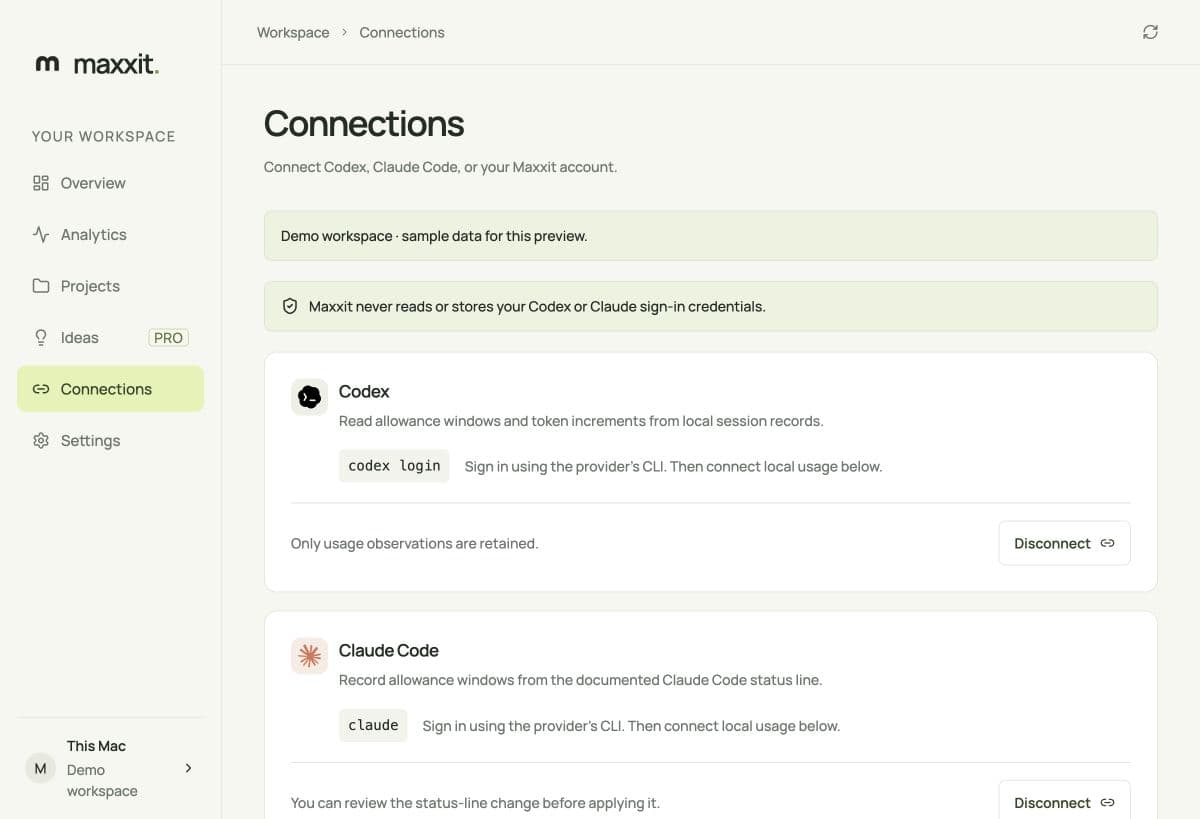
- Open Connections in the app's sidebar. Follow the steps below for each assistant you use.
Connect Codex
- Complete the official CLI setup. Run
codexand follow its sign-in prompts if you have not signed in yet. - In Maxxit, open Connections. Under Codex, choose Connect local usage.
- Use Codex as usual, then return to Overview. Choose the Refresh usage button to check for a new local observation.
Maxxit reads allowance windows and observed token increments from Codex's local session records. It looks under CODEX_HOME/sessions when configured, or ~/.codex/sessions by default. It does not read Codex's sign-in credential files.
The scan reads selected portions of at most 200 session files. Daily totals are partial observations on this Mac. They cannot account for every session, another device, or your complete provider account history.
Connect Claude Code
- Complete the official Claude Code setup. Run
claudeand follow the provider's sign-in prompts. - In Maxxit's Connections view, choose Connect local usage under Claude Code.
- Review the settings file and status-line command shown in the preview. Choose Apply and connect only when you approve that change. Choose Cancel to leave the configuration alone.
- Use Claude Code in a session that reads the approved settings. Wait for a new provider response, then refresh Maxxit.
The bridge records allowance fields and an observation time. When an existing status-line command is supported, Maxxit wraps it to preserve its output. That means the previous command can still execute. Review the change before approving it.
Claude Code may omit a usage window until a new API response, after a reset, or for an account that does not report that allowance. See the provider's status-line documentation for its current field availability. Repeated identical captures do not make an old reading fresh.
Read usage and reset times
Overview shows each assistant's reported usage windows, percentage left, reset time, and the time Maxxit observed the reading. Recent observations appear below the provider cards. Each window has its own limit and reset.
| State | What to do |
|---|---|
| Not connected | Open Connections and enable local usage. |
| Waiting | Use the official assistant to produce its next usage update. A refresh alone cannot create provider data. |
| Stale | The observation is more than two hours old. Use the assistant and check again before relying on its quota. |
| Usage unavailable | A field is missing, stale, or its reset has passed. Maxxit waits for a new reported window. |
A passed reset does not prove that a new allowance is available. Maxxit does not turn an expired reading into 100% remaining. Percentages describe the provider's individual usage windows. Consult the provider for billing, account limits, or an authoritative account-wide balance.
Use analytics and export a CSV
Open Analytics to view daily Codex token increments observed on this Mac. Choose 7, 14, or 30 days. Select a chart day to inspect it, or use your keyboard to focus the day's control. The totals and averages count days with observations. Missing days stay unknown.
Choose Export CSV and select a save location in the native file dialog. The file contains date_utc and observed_tokens columns for the selected range. Dates use UTC, and unobserved dates have a blank token value. Keep those blanks when analyzing the export rather than treating them as zero usage.
These observations are useful for finding patterns in your own work. They are incomplete local records and should not be used as a provider billing statement.
Set up the menu bar
In Settings, choose Codex or Claude Code as your Menu bar provider. Enable Keep running in the menu bar if you want Maxxit to continue collecting usage after you close its window. Start at login is a separate, optional setting. Choose your preferred appearance there too.
Click Maxxit's menu bar icon to see the selected assistant's status. Use the menu bar menu to quit the app when you want monitoring to stop. Closing a window while background mode is enabled keeps the app running.
Choose optional cloud features
Sign in or create a free Maxxit account on first launch. Review the privacy policy and choose whether to share usage, projects, preferences, and workflow details. Approve the displayed code in your browser. The desktop finishes sign-in automatically. Shared data appears in the same account's web workspace, where desktop records are read-only. Hosted AI requires separate consent and Pro. A verified account can use local features offline for up to seven days.
- Usage sharing sends reported allowance observations so the hosted service can support reset reminders.
- Project sharing sends the names and descriptions you enter for project suggestions. Avoid putting secrets, private customer data, or confidential code in those descriptions.
- Settings has separate switches to stop usage sharing or project description sharing later. Stopping uploads does not erase data already uploaded.
Hosted Pro suggestions and server notifications depend on the hosted service's availability and your account entitlement. Read the availability and billing details shown on the website before subscribing. An in-app Pro label does not confirm a completed payment or that email delivery is active.
Add a description in Projects, then open Ideas to prepare an analysis prompt for your own Codex or Claude. Review and copy it into a fresh session with tools disabled, and import the JSON suggestions. Select a task, review its prompt, and start it yourself in your agent. Import its JSON completion report to retain the details on your Mac. The provider may process pasted text in the cloud and load other context from your tool configuration. Maxxit never starts suggested work automatically. Local agent runs are encrypted on the Mac; generic server completion notifications require separate consent and Pro.
Keep Maxxit up to date
Maxxit checks for updates when its main window opens and hourly while that window is visible. In Settings, choose Check for updates to check manually. When a release is available, read What's new, choose Download update, then choose Restart Maxxit when you are ready.
The updater verifies the downloaded archive's signature. If the check or installation fails, retry on a working connection or use the current stable DMG from the download page. Use the DMG once for versions 0.1.9 and earlier.
Disconnect or uninstall
- Open Connections and disconnect Claude Code before removing or moving Maxxit. The app restores the previous status-line command when the current configuration still matches the approved change. If you changed it afterward, Maxxit leaves your newer configuration alone and reports the conflict.
- Disconnect any other assistant to stop its collection. Disconnect the Maxxit account to ask the service to revoke this device's credential. Retry a failed revocation while you still have the app and a working connection.
- Disable Start at login if enabled. Quit Maxxit using its menu bar menu, then remove the app from Applications.
Removing the app retains local preferences, projects, and observations in ~/Library/Application Support/app.maxxit.desktop. If you want to erase that local data, use Finder's Go to Folder command and remove that folder after quitting and disconnecting. Export anything you need first. Do not remove the Codex or Claude configuration folders.
Uninstalling does not cancel a subscription or delete your hosted account. Use the account's subscription and data controls for those separate actions. If you used the optional installer script rather than the DMG, its app lives in your home Applications folder.
Troubleshoot safely
No allowance appears
Confirm the provider is connected, signed in through its official CLI, and producing new usage records. Check that CLI's version and update it using its official guidance. For Claude Code, confirm you approved the status-line bridge and that your session uses those settings. Some provider accounts or responses do not include quota fields. Leave unavailable values unknown.
macOS blocks the app or an update
Download the current stable installer again from Maxxit or its official GitHub release. If it is still blocked, record the exact macOS message and contact support. Keep Gatekeeper and quarantine protections enabled. Do not use commands that remove those protections to make an invalid release open.
Claude settings cannot be restored
The settings file, location, or status-line command may have changed since connection. Review your current command and the previous command before editing anything. A restoration error should not lead you to replace the whole settings file.
Account or Keychain access fails
Unlock your Mac and retry. For cloud errors, check your connection and account status. Keep an existing Keychain item until you understand the error. Do not erase credentials or provider authentication files as a troubleshooting shortcut.
Report a problem with useful evidence
Include the Maxxit version from Settings or the app footer, macOS version, Mac architecture, installation method, provider CLI version, and exact reproduction steps. Review screenshots before sharing. Remove emails, account IDs, private paths, project descriptions, prompts, and tokens.
Never attach provider session files, Claude settings, the Maxxit database, Keychain exports, or a full environment dump. Report reproducible app bugs through GitHub's issue forms. Send account and payment details to private support. Use private vulnerability reporting for security issues.
Sources and maintenance
Instructions checked against released Maxxit v0.1.10 on October 7, 2026. The source guides linked below describe these workflows at revision 82c57b7. Later source changes are not assumed to be in the released app.
This guide follows the desktop app's installation documentation, provider support notes, and data handling documentation. Provider fields and account access can change. Check the linked official CLI documentation when your setup differs.
Continue with the guides and comparisons or explore the web demo. The demo uses sample data and does not connect to your local assistants.